Tensaku
Mark up screens. Stitch tall captures. Move every annotation.
A Wayland screenshot annotation tool with the precision of a red pen.

Tensaku builds on satty (Matthias Gabriel's elegant Wayland screenshot annotator), keeping its fast, focused workflow while adding movable annotations, scroll capture, and a layer panel.
添削 (tensaku) is Japanese for "proofreading correction," the marks a teacher leaves on a student's paper.
What's new in Tensaku新
v0.29.0The headline differences from upstream satty.
Scroll Capture
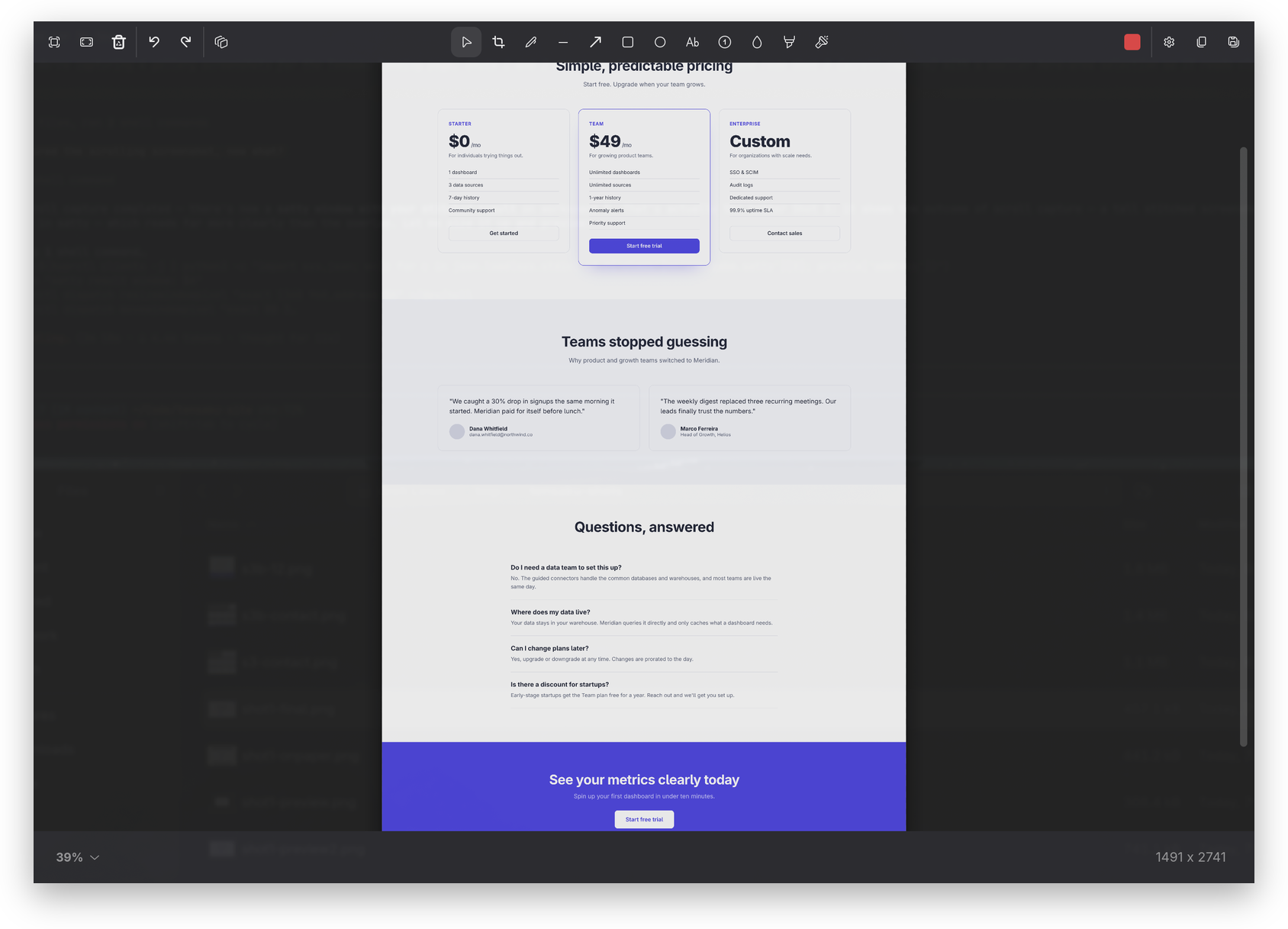
Capture content beyond the visible viewport, vertically or horizontally. Tensaku auto-scrolls the underlying app, captures each frame through a screencopy overlay, and stitches the results into one seamless screenshot.
Movable Annotations
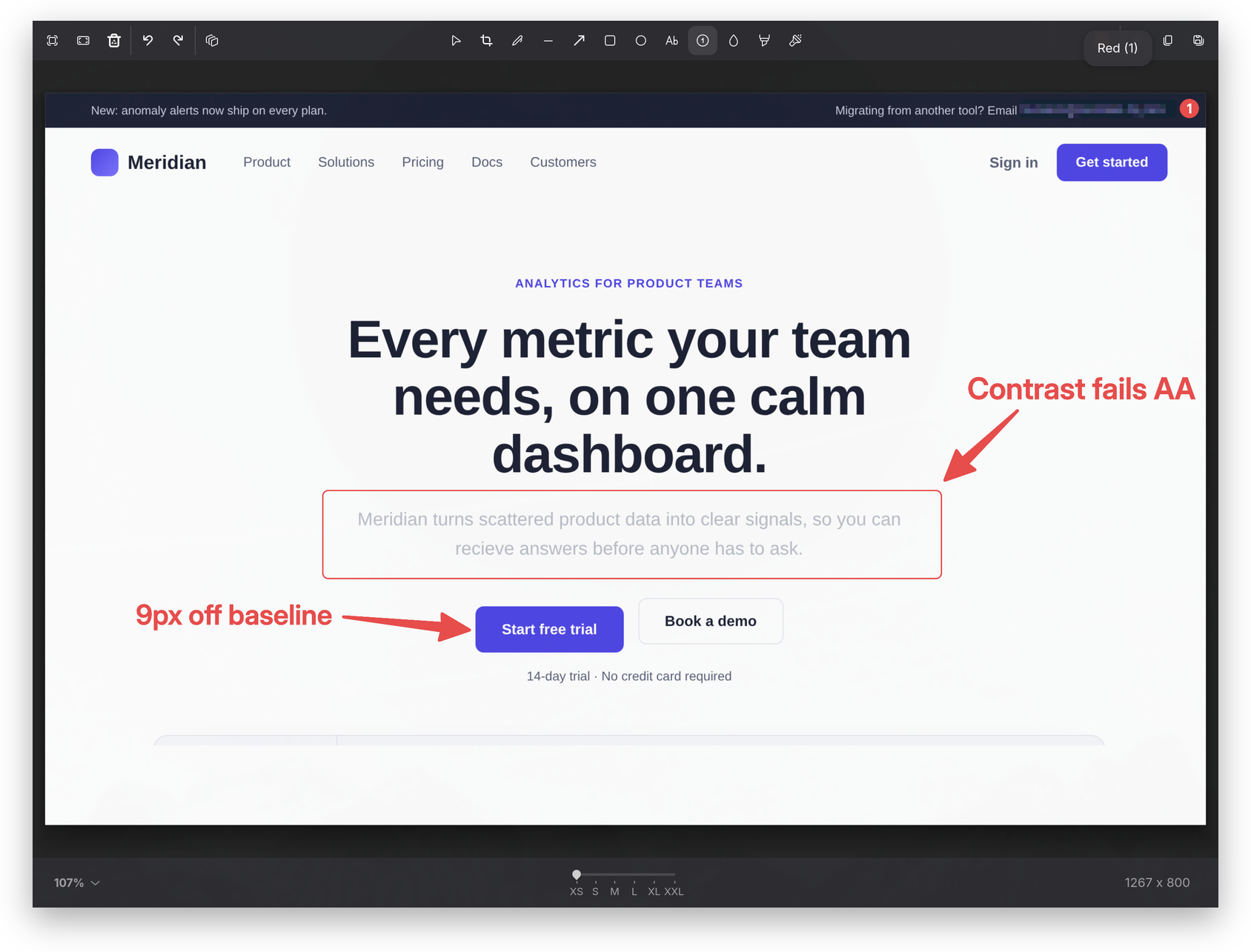
Select, multi-select, drag, and resize annotations after they're drawn — or nudge a selection with the arrow keys. No more "draw it perfectly the first time": every shape, line, and marker stays editable.
Layer Panel
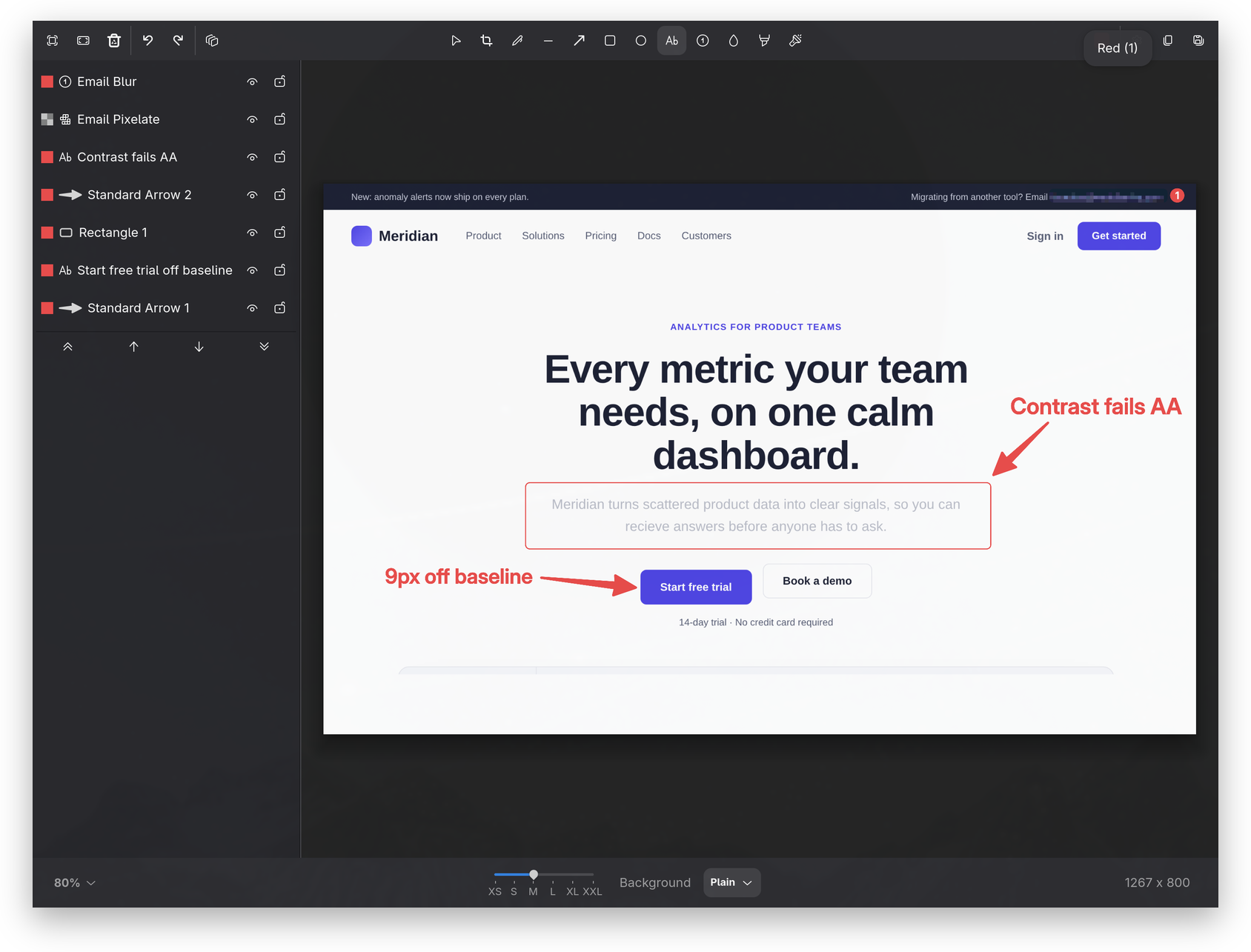
A full layer-stack UI: reorder, lock, hide, rename, and drag-and-drop your annotations. Selection halos and panel rows mirror each other, so what's active is always clear. Ctrl+L toggles the panel.
Paste images as layers
Ctrl+V drops a clipboard image into the canvas as a resizable, movable layer. Annotate over it, reorder it in the layer panel, or undo it like any other annotation.
Zoom controls
Zoom indicator dropdown, Ctrl+digit shortcuts, and Ctrl+scroll to zoom, all DPR-aware — and it leaves your compositor's Super bindings untouched.
Left-hand tool shortcuts
Every tool's default shortcut sits on the left half of the keyboard, so your right hand never leaves the mouse. Switch tools without reaching across to hunt for a key — a real comfort on a split keyboard.
Custom popovers
GTK4 tooltips replaced with rich popovers showing live state for arrow style, blur style, highlighter mode, and more.
10-color standard palette
A vetted default palette in a vertical 2-column picker, plus a system color dialog for everything else.
DPR-aware halos & handles
Selection chrome looks crisp at any display scale; corner / edge handles use display-pixel sizing.
Arrow style picker
Standard, Pointy, Curved, and Double arrow geometries for pointing more expressively.
Highlighter modes
Freeform highlighting or a Text-Locked mode that snaps to detected text rows.
Aspect-ratio crop
Constrain crops to common ratios (16:9, 4:3, 1:1, …) with auto-snapping when you switch ratios.
Spotlight tool
Dim the screenshot around a spotlight region. Existing annotations stay bright on top, so callouts don't get washed out.
Welcome & Preferences dialogs
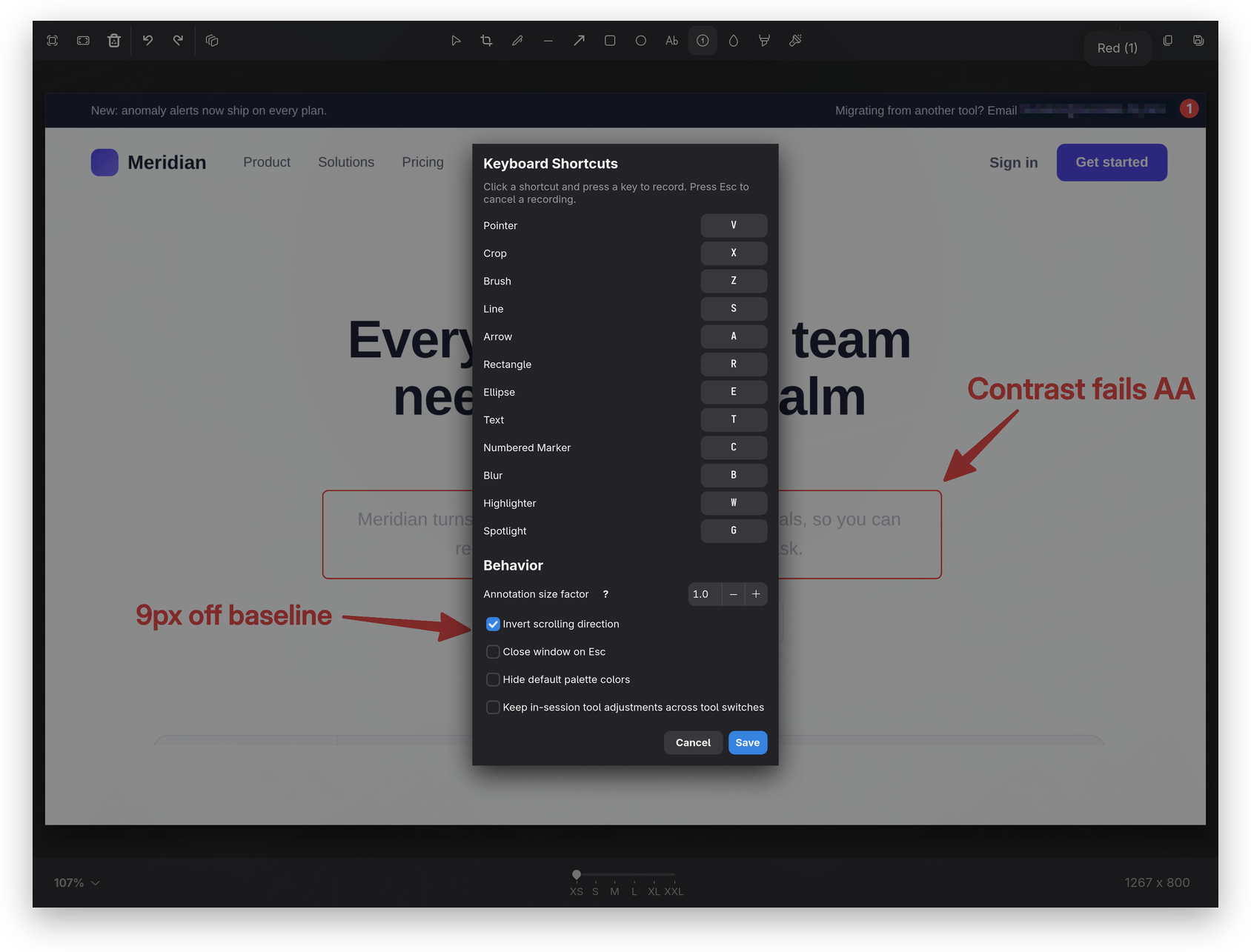
First-launch onboarding plus a GUI for the configuration that previously required editing config.toml.
Toolbar polish
Responsive wrap layout, Ctrl+T to toggle all UI chrome, popover-dismiss handling, and inline help.
Multi-style blur picker
Pixelate, Secure Blur, Gaussian, and Black Out. Choose the right redaction per region from an icon-menu, with irreversible variants for sensitive content.
Smoother brush strokes
Per-annotation smoothness with an RDP-then-Chaikin pipeline: clean curves from imprecise input, dialed in per stroke instead of one global setting.
Crop transforms & dimensions
Rotate 90°, flip horizontal, direct width/height entry with a ↔ swap, background matte picker, and Ctrl+wheel to resize proportionally from center.
From satty基
The foundation Tensaku is built on: every original satty feature still works.
Annotation tools
Arrow, rectangle, ellipse, line, brush, text, blur, highlight, crop, all with size, color, and style controls.
Save or copy
Write a PNG / JPEG / WebP to disk or copy directly to the Wayland clipboard. Pipe to - for stdout.
Configurable keybindings
Every shortcut is rebindable via ~/.config/tensaku/config.toml, including chord-style bindings.
Sway / Hyprland friendly
Window-decoration hints, no-decoration mode, and clean integration with tiling compositors.
Custom CSS theming
Style the toolbar, popovers, and dialogs via a user CSS file. Minimum-size and chrome options exposed.
Undo / redo
Full undo stack across drawing, moving, deleting, and cropping. Ctrl+Z / Ctrl+Shift+Z.
Triggers & actions
Map keys to specific actions (save-and-copy, save-and-exit, etc.). Configurable enter/escape behavior.
Install入
Tensaku runs on Wayland compositors that implement wlr-layer-shell and wlr-screencopy (Sway, Hyprland, river, Wayfire, etc.).
Arch Linux
AUR · RecommendedInstall straight from the AUR — the package tracks every release. Works with paru or any other AUR helper.
yay -S tensakucargo
Builds from source — needs a Rust toolchain and the GTK4/Adwaita dev headers. The second line registers the icon & desktop entry (cargo install is binary-only).
cargo install tensaku
tensaku --install-desktop
Build from source
Requires Rust 1.75+ and GTK4 development headers.
git clone https://github.com/jondkinney/tensaku
cd tensaku
cargo install --path .
Already running satty? Tensaku reads its own config at ~/.config/tensaku/ and installs safely alongside — both binaries coexist.
Quick start始
Two steps: get a screenshot into Tensaku, then annotate it.
-
Get a screenshot into Tensaku
On Omarchy
Run
tensaku --wire-omarchyonce — it pointsOMARCHY_SCREENSHOT_EDITORat Tensaku’s wrapper so your screenshot keys open every capture straight in, window highlighting and all. No restart needed; the README has the details.Other Wayland compositors
slurpis a region picker — drag a box; a plain click cancels it.grim -g "$(slurp)" - | tensaku -f -Or grab the whole screen:
grim - | tensaku -f - -
Annotate & save
Pick a tool, mark up the screenshot, then
Ctrl+Cto copy the result orCtrl+Sto save.
Scrolling capture — a separate mode
To capture content taller than the screen, launch the dedicated mode with tensaku --scroll-capture (or bind it to a key — see the README). Drag a region in the overlay, then click the ▼ (vertical) or ▼ (horizontal) Auto-Scroll button. Tensaku scrolls the underlying app, stitches the frames, and opens the result to annotate.
Screenshots画
Annotation, scroll capture, and the layer panel in action.